
Small businesses face high risk from malicious documents because attackers exploit user trust and common software vulnerabilities. Protect operations by disabling macros, restricting file types, and verifying IT provider security policies. Focus on application hardening rather than just scanning for known threats.
The Anatomy of a Document Attack
Malicious documents are not merely files containing bad data. They are delivery mechanisms for executable code. When you open a Word document or Excel spreadsheet, the application interprets instructions within the file. If those instructions include embedded scripts or macros, the software executes them.
This execution happens on your local machine. Network firewalls and perimeter defenses cannot see this activity because it occurs after the file has been accepted and opened. The attack vector relies on social engineering to convince you to enable content or click a link.
The danger lies in the legitimacy of the format. You expect to open invoices, contracts, and reports. Attackers abuse this expectation. They do not need to hack your network; they only need you to open a file.
Why Small Organizations Are Exposed
Small organizations often lack dedicated security teams. This creates a reliance on general IT support that may not prioritize application-level security. You likely use standard office suites without modifying default security settings.
Default settings in many applications allow macros to run or prompt the user. Attackers know this. They craft documents that trigger these prompts with urgency, such as "Enable Content to View Invoice."
Furthermore, small businesses often have shared credentials or limited role-based access control. If one user falls for a document attack, the attacker can move laterally across the network. The blast radius is large because there are fewer barriers between user workstations and sensitive data.
Understanding Macro Threats
Macros are small programs written in a scripting language, such as Visual Basic for Applications, embedded within documents. They automate tasks within the application. However, they can also interact with the operating system.
A malicious macro can download additional payloads, encrypt files, or steal data. Modern office applications warn users before running macros, but these warnings are often ignored. Users become desensitized to security prompts over time.
Disabling macros entirely breaks many legitimate workflows. You must balance security with functionality. The solution is not to ban macros but to restrict where they can run and from which sources they can originate.
Low-Cost Protections for Your Environment
You can implement significant protections without heavy investment. The first step is configuring your office suite to disable all macros by default. This prevents any embedded code from running unless you explicitly trust the source.
Second, restrict file types allowed on your network. Block executable files and script files from being transferred via email or cloud storage. This reduces the surface area for drive-by downloads.
Third, ensure your software is updated. Patches often fix vulnerabilities that allow documents to execute code without user interaction. Automated updates are critical because manual patching is inconsistent.
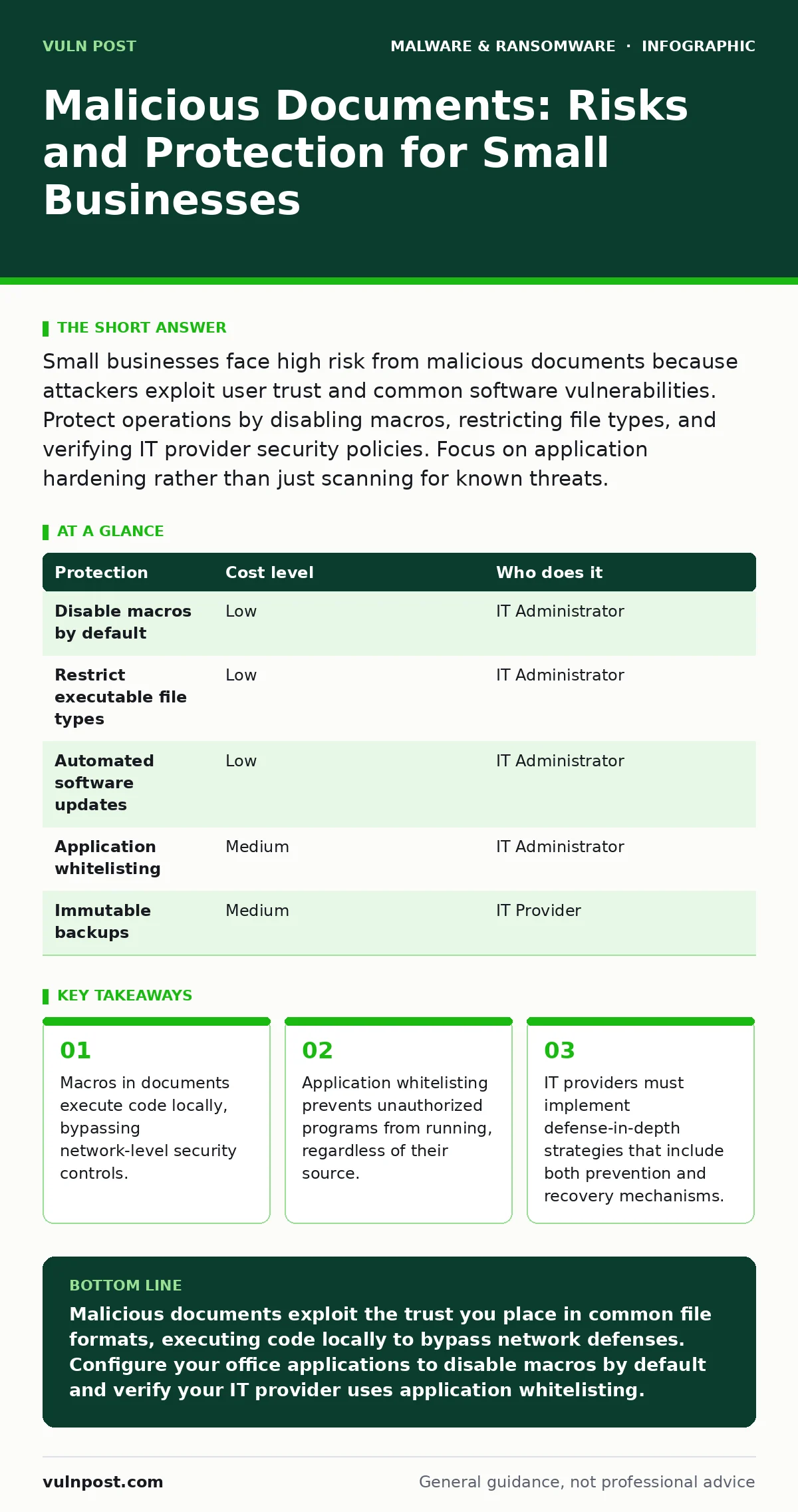
| Protection | Cost level | Who does it |
|---|---|---|
| Disable macros by default | Low | IT Administrator |
| Restrict executable file types | Low | IT Administrator |
| Automated software updates | Low | IT Administrator |
| Application whitelisting | Medium | IT Administrator |
| Immutable backups | Medium | IT Provider |
The Role of IT Providers
Your IT provider is your first line of defense. They must implement more than just basic scanning. You need to ask about their approach to application control and user behavior monitoring.
Do not accept vague assurances. Ask for specific configurations. Verify that they use application whitelisting, which allows only approved programs to run. This prevents malicious documents from launching unauthorized processes.
Also, inquire about their backup strategy. If a ransomware attack succeeds, you need immutable backups to restore data. These backups cannot be altered or deleted by the attacker, even if they gain administrative access.
See also: Detect Remote Access Tool Abuse: Signals, Logs, and Blind Spots · Real-Time Protection: Definition, Mechanisms, and Operational Limits
Questions to Ask Your IT Provider
Use these questions to evaluate your IT provider’s capability to protect against document-based attacks.
- Do you enforce a policy that disables macros by default across all workstations?
- How do you handle software updates for office applications and operating systems?
- Do you implement application whitelisting to prevent unauthorized code execution?
- What is your procedure for testing backups to ensure they are recoverable?
- How do you monitor for unusual process execution that might indicate a macro attack?
Beyond Basic Antivirus
Traditional antivirus solutions rely on signatures. They compare files against a database of known threats. This approach fails against new or customized malicious documents.
You need next-generation antivirus that uses behavioral analysis. This technology monitors how applications behave rather than just what they are. If a Word document tries to launch a command prompt, the system blocks it.
Consider dynamic malware analysis for suspicious files. This involves running files in an isolated sandbox to observe their behavior. While not always feasible for every small business, it is a critical capability for your IT provider.
The Hidden Cost of Convenience
Convenience often undermines security. Cloud storage and collaboration tools make it easy to share documents. This ease of use increases the risk of accidental exposure.
Users may bypass security controls to complete tasks quickly. They might disable warnings or use personal devices to access work files. These actions create gaps in your security posture.
You must train users to recognize the signs of malicious documents. Look for unexpected attachments, urgent requests, and files with double extensions. However, training is not a substitute for technical controls. Technology must enforce security because human attention is fallible.
Recovery and Resilience
Prevention is not perfect. You must assume that some attacks will succeed. Your recovery plan determines your resilience.
Regular backups are necessary but insufficient. Backups must be isolated from the main network. If they are connected, ransomware can encrypt them too.
Test your recovery process regularly. A backup that cannot be restored is useless. Document your recovery steps and ensure your team knows how to execute them under pressure.
Key takeaways
- Macros in documents execute code locally, bypassing network-level security controls.
- Application whitelisting prevents unauthorized programs from running, regardless of their source.
- IT providers must implement defense-in-depth strategies that include both prevention and recovery mechanisms.
Malicious documents exploit the trust you place in common file formats, executing code locally to bypass network defenses. Configure your office applications to disable macros by default and verify your IT provider uses application whitelisting.
Frequently asked questions
Can a PDF file contain malware?
Yes, PDF files can contain malicious JavaScript or embedded executables that run when the document is opened, posing a significant risk if users enable content.
How do I disable macros in Microsoft Office?
Go to File > Options > Trust Center > Trust Center Settings > Macro Settings, then select "Disable all macros without notification."
What is application whitelisting?
Application whitelisting is a security control that only allows approved, trusted programs to run, blocking any unauthorized software regardless of its source.
Why are immutable backups important?
Immutable backups cannot be modified or deleted for a set period, ensuring that ransomware attackers cannot encrypt or destroy your recovery data.
How this guide was produced: written by the Vuln Post editorial team with AI assistance, checked against the public references listed below, and reviewed when the facts change. See our editorial policy or report an error.