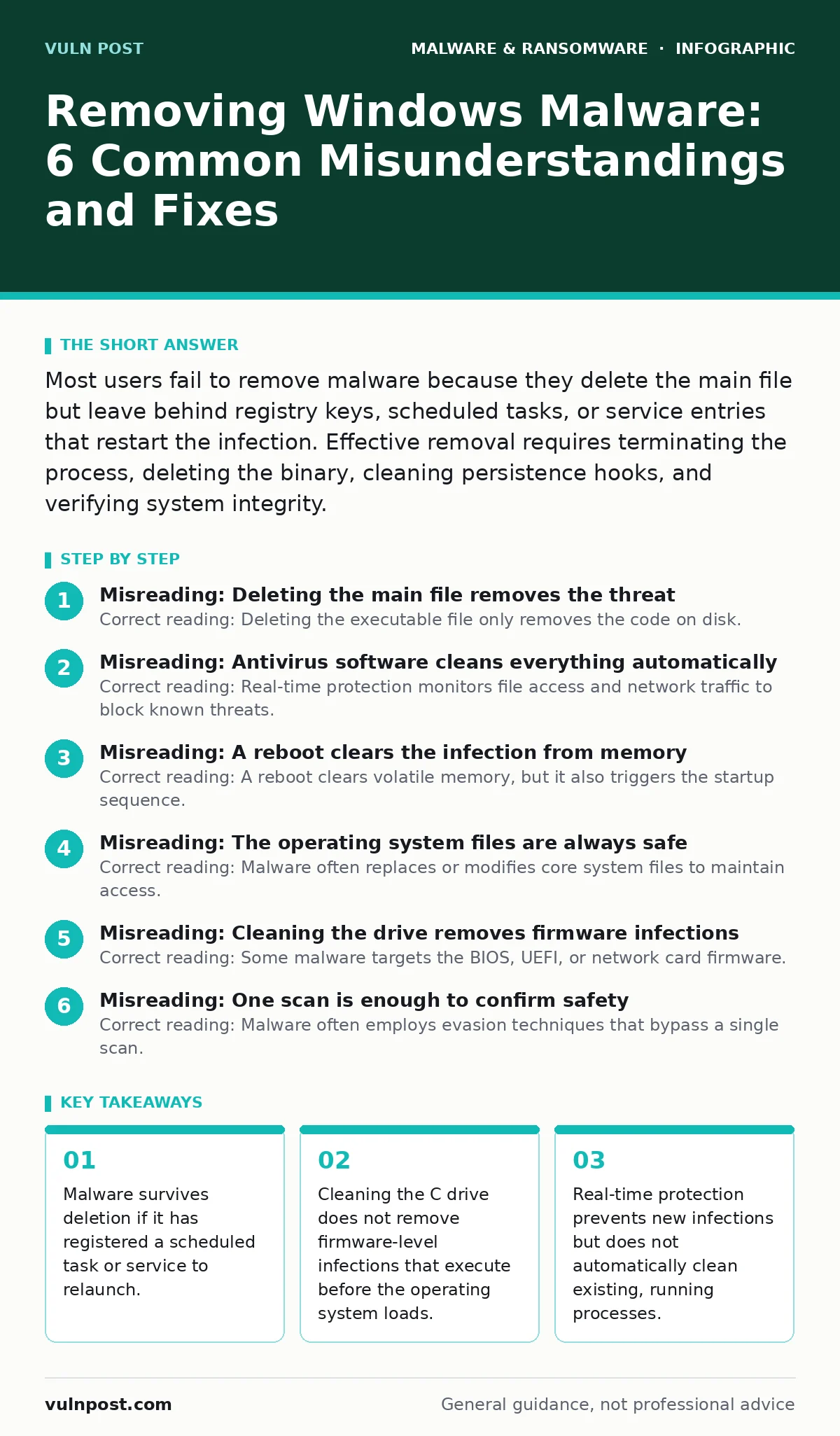
Most users fail to remove malware because they delete the main file but leave behind registry keys, scheduled tasks, or service entries that restart the infection. Effective removal requires terminating the process, deleting the binary, cleaning persistence hooks, and verifying system integrity.
Misreading: Deleting the main file removes the threat
Correct reading: Deleting the executable file only removes the code on disk. Most malware establishes persistence before it executes its payload. Persistence allows the malware to restart automatically when the system reboots or when a user logs in. If you delete the file but leave the persistence mechanism, the malware may attempt to download itself again or trigger a dormant backup copy. You must identify and remove the registry keys, scheduled tasks, or service entries that point to the executable.
Misreading: Antivirus software cleans everything automatically
Correct reading: Real-time protection monitors file access and network traffic to block known threats. It does not always quarantine or delete files that are already running in memory. Once a process is active, the operating system locks the file, preventing standard deletion. You must terminate the process first. Some advanced malware hooks into the antivirus driver to hide its activity. In these cases, the antivirus software may report a clean system while the malware remains active and communicating with command-and-control servers.
Misreading: A reboot clears the infection from memory
Correct reading: A reboot clears volatile memory, but it also triggers the startup sequence. If the malware has installed itself as a Windows Service or a Startup item, it will reload into memory immediately after the kernel initializes. This creates a window where the malware is active but may not yet have established its network connections. Security teams use this window to analyze the behavior. For removal, you must enter Safe Mode with Networking disabled to prevent the malware from reconnecting while you dismantle its persistence hooks.
Misreading: The operating system files are always safe
Correct reading: Malware often replaces or modifies core system files to maintain access. This technique, known as rootkit behavior, allows the malware to intercept system calls and hide its presence from standard tools. Standard antivirus scans may not detect these modifications because the file signatures remain valid, but the behavior is altered. You must verify the integrity of system files using tools like System File Checker. If core files are compromised, a simple cleanup is insufficient. The operating system may need to be reinstalled to ensure the kernel and drivers are trustworthy.
Misreading: Cleaning the drive removes firmware infections
Correct reading: Some malware targets the BIOS, UEFI, or network card firmware. These components store code that executes before the Windows operating system loads. Formatting the hard drive or reinstalling Windows does not affect firmware. The malware survives the wipe and reinfects the new operating system during the boot process. Detecting firmware malware requires specialized tools that read the firmware directly. If you suspect a firmware infection, you must flash the BIOS or UEFI with a clean image from the manufacturer. This process carries risk and requires careful verification of the firmware source.
See also: Detecting Malicious npm Packages in Your Build Pipeline
Misreading: One scan is enough to confirm safety
Correct reading: Malware often employs evasion techniques that bypass a single scan. Some variants are polymorphic, meaning they change their code signature with every execution. Others are dormant for long periods to avoid detection. Running a single antivirus scan may miss these threats. You should use multiple detection engines and behavioral analysis tools. Dynamic malware analysis involves running the suspect file in an isolated environment to observe its behavior. This reveals actions that static signature scans cannot detect. Cross-referencing results from different tools reduces the chance of missing a sophisticated threat.
Misreading: Software restrictions prevent all execution
Correct reading: Software restriction policies and AppLocker can limit which applications run on a system. However, they rely on rules that administrators must define correctly. If the rules are too broad, legitimate software may be blocked, causing operational issues. If the rules are too narrow, malware may find a loophole to execute. Attackers often use living-off-the-land binaries, such as PowerShell or Windows Management Instrumentation, to execute malicious code. These tools are legitimate system components, so restriction policies may allow them to run. You must monitor and restrict the usage of these tools, not just block unknown executables.
Misreading: Network isolation stops the damage
Correct reading: Disconnecting the infected PC from the network prevents the malware from sending data to external servers or spreading to other systems. However, it does not stop the malware from executing on the local machine. The malware may still encrypt files, delete data, or install backdoors. Some ransomware variants operate entirely offline, encrypting files without any network communication. Network isolation is a containment step, not a remediation step. You must still remove the malware from the local system. Failing to do so leaves the system vulnerable to reinfection when it reconnects.
The process of removing malware is iterative. You must identify the threat, terminate the process, remove the persistence, and verify the system. Each step requires careful attention to detail. Missing one step can allow the malware to survive and resurface later. Security teams should document each step of the removal process. This documentation helps in understanding the attack vector and preventing future infections. It also provides a record for compliance and forensic analysis.
Key takeaways
- Malware survives deletion if it has registered a scheduled task or service to relaunch.
- Cleaning the C drive does not remove firmware-level infections that execute before the operating system loads.
- Real-time protection prevents new infections but does not automatically clean existing, running processes.
Frequently asked questions
How do I know if my Windows PC still has malware after cleanup?
Monitor system performance and network traffic for anomalies. Use multiple detection tools to scan the system. Check for unauthorized scheduled tasks, services, and registry entries. If the system behavior remains abnormal, assume the malware is still present.
Can malware hide from antivirus software?
Yes, malware can use rootkit techniques to hide its files and processes. It may also hook into the antivirus driver to prevent detection. Behavioral analysis and memory scanning can help identify these hidden threats. Standard signature-based scans may miss them.
Is it safe to use a compromised PC after removing malware?
It is risky. Malware may have stolen credentials or installed backdoors. Even if the main malware is removed, residual components may remain. For high-security environments, reinstalling the operating system from a clean image is the safest approach. This ensures no hidden components remain.
Why does my antivirus say the system is clean when I see suspicious activity?
The antivirus may not have a signature for the specific malware variant. It may also be bypassed by rootkit techniques. The malware could be using living-off-the-land binaries that the antivirus allows. Use behavioral analysis tools and manual inspection to identify the threat.
How this guide was produced: written by the Vuln Post editorial team with AI assistance, checked against the public references listed below, and reviewed when the facts change. See our editorial policy or report an error.